
Drone Flight Log Fields to Standardise in Excel Across Teams
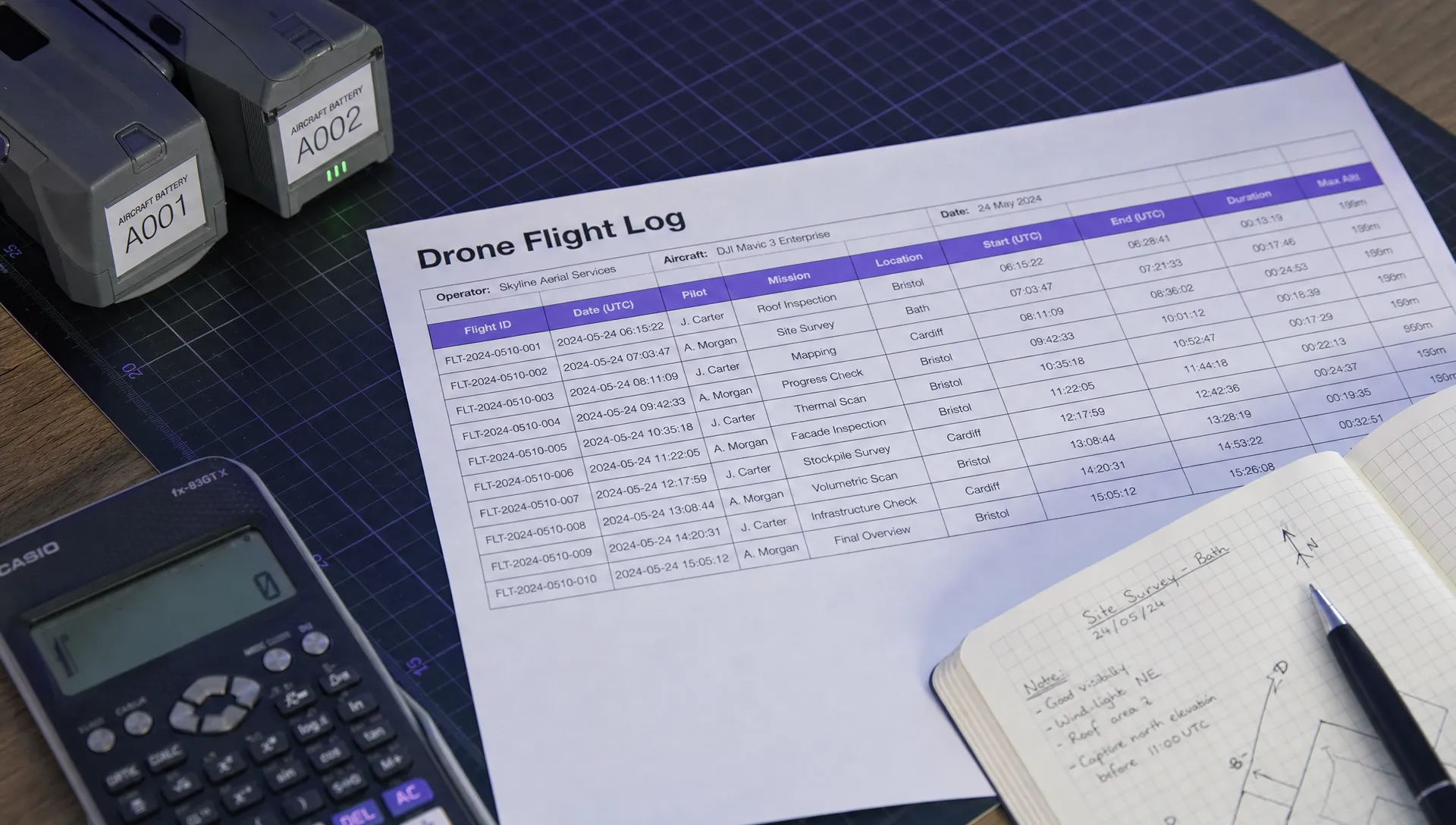
A shared drone flight log Excel workbook needs more than matching column headings. Everyone must record the same event, use the same time basis and identify pilots and aircraft consistently. Otherwise, monthly totals can look credible while counting duplicate flights, mixing local time with UTC or splitting one aircraft across several names.
For survey teams, utility operators and emergency services, the aim is a record that another person can understand without calling the pilot. The following field structure, formulas and review rules provide a practical starting point. They are operational recommendations, not a list of legally mandatory logbook fields.
Decide what one row represents
Use one row per take-off-to-landing flight, per aircraft. A job involving six flights produces six rows, all linked by the same job identifier.
A battery change followed by another take-off creates a new flight. A cancelled deployment with no take-off belongs in the job record, not in airborne-time totals. If an aircraft lands and takes off again during the same deployment, record those flights separately under this convention.
Assign one remote pilot to each flight row. Record observers and other crew through a separate crew reference or linked sheet. Duplicating a flight row for every crew member inflates aircraft utilisation and total flight time.
Decide how to handle pilot changes before they occur. If your operations involve handovers, retain one aircraft flight record and keep individual pilot segments separately. Do not count the entire flight against every pilot.
Standardise your drone flight log Excel fields
Identifiers that remain consistent across teams
Names are useful for display, but stable identifiers should connect the records. Two pilots may share a surname, and an aircraft may acquire a new nickname without becoming a different asset.
| Field | What to record | Team-wide rule |
|---|---|---|
Flight_ID |
Unique identifier for the flight | Never reuse it, including after a correction |
Job_ID |
Related deployment, task or work order | Match the identifier in the job record |
Pilot_ID |
Assigned remote pilot | Select from an approved pilot list |
Aircraft_ID |
Aircraft asset identifier | Use the fleet register ID, not a nickname |
Site_ID |
Site or location reference | Link to a defined location record |
Battery_IDs |
Installed battery identifier or identifiers | Record the complete set used for that flight |
Keep aircraft serial numbers and pilot contact details in their respective registers rather than retyping them into every flight row. Preserve historical identifiers when someone leaves or an aircraft is retired.
For paired batteries, define a consistent separator such as a semicolon. If you need reliable per-battery reporting, use a separate flight-to-battery table rather than searching combined text cells.
Timestamps and calculated flight duration
Time fields need explicit definitions. “Start time” might mean powering on, starting motors or taking off, depending on the person entering it.
| Field | Meaning | Format or rule |
|---|---|---|
Takeoff_UTC |
Date and time the aircraft becomes airborne | Excel date-time value in UTC |
Landing_UTC |
Date and time that airborne flight ends | Excel date-time value in UTC |
Duration |
Landing minus take-off | Calculated duration, displayed as [h]:mm:ss |
Decimal_hours |
Duration expressed in hours | Calculated as duration multiplied by 24 |
In your drone flight log Excel workbook, store full dates with both timestamps. This handles flights crossing midnight without guessing which day the landing occurred.
Adopt one definition of airborne time across teams. Keep motor-running time or equipment-powered time in separately named fields if those measures are useful. Do not combine them with airborne time in one total.
UTC avoids daylight-saving ambiguity, but Excel does not convert a local timestamp into UTC simply because you change its display format. Record the source time basis and apply a documented conversion where needed.
Operational context and supporting evidence
A flight row should point to supporting records rather than reproduce an entire job pack.
| Field | Purpose | Suggested convention |
|---|---|---|
Purpose |
Describes the work performed | Controlled labels such as Survey, Inspection, Training or Emergency response |
Operation_profile |
Records the category or authorisation reference used in the job plan, where relevant | Copy the approved reference rather than infer it from the aircraft |
Checks_ref |
Connects the flight to its completed checks | Stable record ID or controlled file path |
RA_ref |
Connects the flight to its risk assessment | Include the applicable revision |
Weather_ref |
Identifies the relevant weather record | Reference the observation or briefing used |
Source_ref |
Identifies the original flight-data file | Preserve the source file and its provenance |
Exception_ref |
Links defects, incidents or other exceptions | Use a separate exception record where appropriate |
Use your drone flight log Excel sheet as an index to this evidence. A field containing “done” cannot identify which checklist was completed or which assessment revision applied.
If weather is recorded directly in columns, define its units and observation time. For example, Wind_mean_mps is less ambiguous than Wind. Keep gust speed separate from mean wind speed.
Review status and correction history
Add Record_status, Entered_by, Reviewed_by and Reviewed_at_UTC. A simple status list is Draft, Reviewed and Void.
Only reviewed rows should feed published operational totals. Define review as checking identifiers, timestamps and evidence references against the source records, not merely confirming that cells contain something.
Do not delete an accepted record to hide a mistake. Mark a duplicate as void or make a documented correction, retaining who changed it, when and why. A separate corrections sheet can hold this history if the workbook cannot preserve it adequately.
Build a paste-ready starter sheet
Create three sheets: Flights, Lists and Readme. Keep the flight table on Flights, controlled identifiers and labels on Lists, and the field definitions on Readme.
The example below is deliberately compact. It contains fictional flights and illustrative source filenames. Paste it into Excel as tab-separated data, then add the evidence and review columns described above.
Flight_ID   Job_ID  Pilot_ID    Aircraft_ID Site_ID Takeoff_UTC Landing_UTC Battery_IDs Purpose Record_status   Source_ref
FLT-0001    JOB-0101    P-014   AC-003  SITE-021    2026-10-12 09:00:00 2026-10-12 09:18:30 BAT-021;BAT-022 Inspection  Draft   flight-0001-original.txt
FLT-0002    JOB-0102    P-014   AC-003  SITE-022    2026-10-12 23:55:00 2026-10-13 00:07:00 BAT-023;BAT-024 Training    Draft   flight-0002-original.txt
Select the range, choose Insert > Table and name the table Flights. Add the calculated columns Duration and Decimal_hours.
Before distributing this drone flight log Excel template, test whether the pasted timestamps are genuine Excel date-time values. Parsing depends on local settings. Applying a date format to text does not convert it into a usable timestamp.
Write instructions that survive staff changes
The Readme sheet should explain the row definition, UTC convention, status rules and responsibility for corrections. Give the workbook a schema version so teams can identify outdated copies.
Document which fields are required before review. For example, require flight, pilot and aircraft identifiers, valid timestamps and a source reference, with supporting evidence requirements defined for the operation.
Use blanks consistently. A missing timestamp should remain empty and trigger a review check. Do not enter N/A, a dash or zero into a date-time column. Where a reference genuinely does not apply, define a controlled value and explain when it may be used.
Finally, state who owns each reference list. Uncontrolled changes to aircraft IDs or purpose labels can fragment reports even when the formulas remain correct.
Calculate flight time without breaking totals
Calculate duration using full timestamps
Enter this formula in the Duration column of the Flights table:
=IF(AND(ISNUMBER([@Takeoff_UTC]),ISNUMBER([@Landing_UTC]),[@Landing_UTC]>=[@Takeoff_UTC]),[@Landing_UTC]-[@Takeoff_UTC],"")Format the column as [h]:mm:ss. The brackets allow accumulated hours to display beyond 24 rather than wrapping back to zero.
This formula leaves the duration blank if either timestamp is missing, stored as text or in the wrong chronological order. Treat those blanks as review failures, not as zero-duration flights. Flag zero-duration records for checking too.
A drone flight log Excel formula should expose incomplete records rather than turn them into plausible-looking totals. Avoid using MOD to conceal a negative duration: it can make an incorrect date look like a valid overnight flight.
Calculate decimal hours separately
Use this formula in Decimal_hours:
=IF(ISNUMBER([@Duration]),[@Duration]*24,"")Excel stores duration as a fraction of a day, so multiplying by 24 returns hours. The first example flight lasts 18 minutes 30 seconds, or approximately 0.308333 hours. It is not 0.1830 hours.
Retain the underlying precision and round only the displayed result. Rounding each flight before summing introduces avoidable differences between reports.
The two sample flights total 30 minutes 30 seconds, or approximately 0.508333 hours. Use those values as a simple acceptance test before adding real records. Formula separators may need changing from commas to semicolons in some Excel installations.
Total reviewed flights by pilot or aircraft
To total reviewed airborne duration, use:
=SUMIFS(Flights[Duration],Flights[Record_status],"Reviewed")Format that result as [h]:mm:ss too. The sample records remain excluded until their status changes from Draft to Reviewed.
For reviewed decimal hours belonging to the pilot ID in summary cell A2, use:
=SUMIFS(Flights[Decimal_hours],Flights[Pilot_ID],A2,Flights[Record_status],"Reviewed")An aircraft summary uses the same pattern with Aircraft_ID. PivotTables are also useful for grouping reviewed flights by month, purpose or site, provided they are refreshed after changes.
Keep imported historical aircraft hours separate as an opening balance with a defined cut-off date. Otherwise, overlapping historic and current records can double-count utilisation.
Reconcile DJI data with operational records
Aircraft-generated data and a team log answer different questions. A source file may contain timestamps and telemetry, while the operational record supplies the job reference, assigned pilot and supporting paperwork.
Keep original files unchanged. Work on copies or imports, and record enough information to connect each spreadsheet row to its source. Do not match files solely by their names, which may repeat across devices or exports.
For DJI records, use Dronedesk’s DJI flight log analysis tool when examining flight data, then reconcile the findings with the operational record. Do not assume that telemetry alone identifies the correct client, task or crew roles.
Use a repeatable reconciliation sequence:
- Match the aircraft identity, flight date and approximate take-off time.
- Confirm the source timestamp’s time zone before comparing it with UTC fields.
- Compare take-off and landing events using your agreed airborne-time definition.
- Check whether another row already represents the same physical flight.
- Resolve differences before changing the record status to
Reviewed.
Your drone flight log Excel record should retain the source reference even after a discrepancy is resolved. Where manual and imported times differ, record which value was accepted and why. Do not silently overwrite one with the other.
Add safeguards before several teams start editing
Validate entries and protect formulas
Use data-validation lists for pilot IDs, aircraft IDs, purposes and review statuses. Protect calculated columns against routine editing while leaving entry cells accessible. Worksheet protection reduces accidental changes; it is not a security boundary.
For duplicate flight IDs in column A, a conditional-formatting rule can use:
=AND($A2<>"",COUNTIF($A:$A,$A2)>1)Also flag missing required values, invalid timestamps and reviewed rows without reviewer details. Validation alone is insufficient because pasted data can bypass or replace some controls.
Add a reasonableness check for unusually long or short flights, with thresholds suited to each aircraft and operation. Flag outliers for investigation rather than deleting them automatically.
Control sharing, backups and access
Maintain one authoritative workbook in an organisation-approved location. If teams must work offline, define who merges their records and how duplicate IDs are prevented. A team prefix can help, provided its allocation is controlled.
For a shared drone flight log Excel process, test simultaneous editing and formula behaviour in the actual Excel versions your teams use. Do not assume desktop and browser workflows behave identically.
Use version history where available and maintain recoverable backups. Test restoration rather than relying on a folder labelled “backup”. Limit access to personal details, sensitive infrastructure locations and incident information according to organisational policy.
Keep bulky reports and sensitive attachments in controlled storage, linked by stable references. This makes the workbook easier to maintain without treating it as the sole repository for every operational record.
Keep the log’s evidential limits clear
A complete spreadsheet is not, by itself, proof that an operation met every applicable requirement. This field set is a recommended team standard, not a legal checklist or a statement about a particular operating category.
Before adopting it, have the person responsible for operational assurance confirm the required records, supporting evidence and retention arrangements for your activities. Apply any relevant organisational or contractual requirements as well.
Assign a retention rule to source files and linked evidence, not just the workbook. A flight row is less useful when its referenced checklist or assessment has been deleted.
Review the field dictionary when operations change. Add a new field only when someone can define its purpose, owner and reporting use. Unexplained columns tend to produce inconsistent answers.
Frequently asked questions
What is the minimum useful set of flight-log fields? Start with a unique flight ID, job reference, pilot ID, aircraft ID, location, full take-off and landing timestamps, calculated duration and source reference. Add review status and links to the supporting evidence your operation needs.
How do I total drone flight hours in Excel? Subtract full take-off timestamps from full landing timestamps, display durations as [h]:mm:ss and multiply durations by 24 for decimal hours. Sum reviewed records only, and keep missing or invalid times out of approved reports.
Can one spreadsheet hold several teams’ flights? Yes, if they share identifiers, field definitions and review rules. A drone flight log Excel workbook becomes unreliable when each team changes labels, time conventions or formulas independently.
Should a PDF replace the Excel workbook? A PDF can preserve a dated reporting snapshot, but it does not replace the editable records and calculations. Retain the underlying workbook and referenced evidence under your agreed retention policy.
Decide whether Excel still fits your process
Excel can support a consistent log when ownership and review are clear. Repeated reconciliation problems, conflicting copies or difficulty connecting flights to supporting records are reasons to reassess the workflow.
Use the decision guide for drone operations software to structure that assessment, then compare your requirements with Dronedesk’s published features. Keep the field dictionary you have developed: it remains a useful specification for evaluating any replacement.
 Remote Pilot Competency Evidence for Utility Procurement Teams →
 Drone Flight Log Fields to Standardise in Excel Across Teams →
 How to Preserve Original Data With a DJI Flight Log Converter →
 Beyond Visual Line of Sight Drone Operations and Observer Roles →
 How to Troubleshoot a DJI Log Export That Will Not Open →
 Drone Pilot Regulations for Visiting Overseas Contractors →
 Drone Laws Near Airports for Repeat Inspection Contracts →
 FAA Restrictions on Drones During Stadium Events Explained →
 How to Update Drone Flight Checklists After a Near Miss →
 FAA Drone Regulations for Commercial Use in Paid Training →