
How to Match a DJI Flight Log to a Client Job
If you searched for “flight log dji” because you need to connect a flight record to a client job, start with the flight’s actual time and location, not its filename. Compare those details with the job’s site boundary and working window, check the aircraft and pilot against your operational records, then save the connection under a stable job reference.
A reliable match needs supporting evidence, not just a similar date. One client visit might involve several flights, while a single controller might hold records from multiple projects. Battery changes, weather delays and return visits make a simple one-file-per-job assumption unreliable.
The workflow below works whether you maintain a spreadsheet, a document register or an operations platform. Its purpose is to leave another team member able to understand why a particular flight belongs to a particular job, without needing to ask the original pilot.
From “flight log dji” to a confirmed client job
Treat the flight record and the job record as two separate sources that need to agree. The flight describes aircraft activity. The job describes the commissioned work, location and people assigned to it.
Use this evidence hierarchy when comparing them:
| Evidence | What to compare | Main limitation |
|---|---|---|
| Actual flight time | Take-off and landing against the recorded work window | Time zones and schedule changes can cause apparent mismatches |
| Flight track | Recorded positions against the job site or work area | Neighbouring jobs can share a launch point |
| Aircraft identity | Available aircraft identifier against the deployment record | Aircraft model alone does not identify an individual aircraft |
| Pilot assignment | Operational roster, dispatch record or pilot confirmation | An account name or file uploader may not identify the pilot |
| Mission context | Capture pattern, field notes and relevant imagery | Supporting material may be incomplete |
| Filename | A useful pointer to the original record | Files can be renamed, copied or duplicated |
As an internal rule, require agreement between time and location, then resolve any conflicting aircraft or crew information before confirming the match.
Step 1: Establish the job record before selecting a flight
Give the client job a unique reference, such as SURV-1042. Keep that reference separate from the client name: a utility company might commission dozens of inspections at the same asset over several years.
The job record should identify the client, the site boundary or asset, the planned working window and the assigned team. Add the actual attendance window when the crew returns, since the planned start time may no longer reflect what happened.
Be precise about location. “North depot” is a weak identifier if the client has several depots. A mapped boundary, asset identifier or site address provides a stronger basis for comparison.
Also decide what counts as a job in your system. A two-day survey could be one commercial job with several sorties, rather than a new job for every battery. That distinction determines how you will associate each DJI flight log without fragmenting the project record.
Step 2: Retrieve the original record and preserve its identity
DJI record storage and export options vary by aircraft, controller, application and software version. Start with the device and application used for the flight, such as DJI Fly or DJI Pilot 2, and consult the relevant DJI documentation for that setup.
Do not assume every DJI file is interchangeable. App flight records and aircraft diagnostic data can serve different purposes, and the information available to a viewer depends on the file format and supported decoding.
Keep an untouched copy of the source file before renaming or processing anything. Record its original filename, where it came from and when it was collected. If you create a working copy with the job reference in its name, retain the connection to the original.
You can use Dronedesk’s DJI flight log analysis tool when reviewing flight data, checking that your particular record is supported before building a workflow around it. Base the match on information you can actually inspect, not fields you assume the file contains.
Step 3: Put the flight and job times on the same basis
A correct flight can appear to belong to the wrong appointment if one system displays UTC and another displays local time. Check the time basis shown by the viewer or export, along with the date and any daylight-saving adjustment.
For example, a timestamp of 2026-06-18T09:12:08Z represents 09:12:08 UTC. At a UK site on that date, it corresponds to 10:12:08 British Summer Time. Comparing it directly with a 10:00 local appointment without converting it could send you towards the wrong record.
Save the original timestamp and the normalised value, with the time zone clearly labelled. A suitable entry would be 18 June 2026, 10:12:08 BST (UTC+01:00).
Use actual take-off and landing times from the DJI flight log where available. A file’s creation, copying or upload time is not a substitute for flight time. If the displayed time still conflicts with field notes, flag the discrepancy rather than silently changing the source value.
Step 4: Compare the flight path, then check aircraft and crew
Plot the recorded track against the job boundary or asset location. The route usually provides more context than a launch point alone, particularly when crews use the same safe operating area for neighbouring sites.
Consider a hypothetical inspection morning. Job UTIL-2081 covers a western compound from 10:00 to 11:00. Job UTIL-2082 covers an eastern compound from 10:30 to 11:30. A flight beginning at 10:42 fits both windows, so time alone cannot distinguish them.
If its track follows the western compound’s assets, the evidence supports the first job. If it crosses both compounds, investigate whether it supported both assignments rather than forcing it into one.
Next, compare the available aircraft identifier with the fleet deployment record. Two aircraft of the same model are not interchangeable evidence. Check the crew assignment separately: a shared controller, account holder or person exporting the file does not necessarily identify who flew.
Where these checks disagree, leave the DJI flight log unassigned until the pilot or supporting records resolve the conflict.
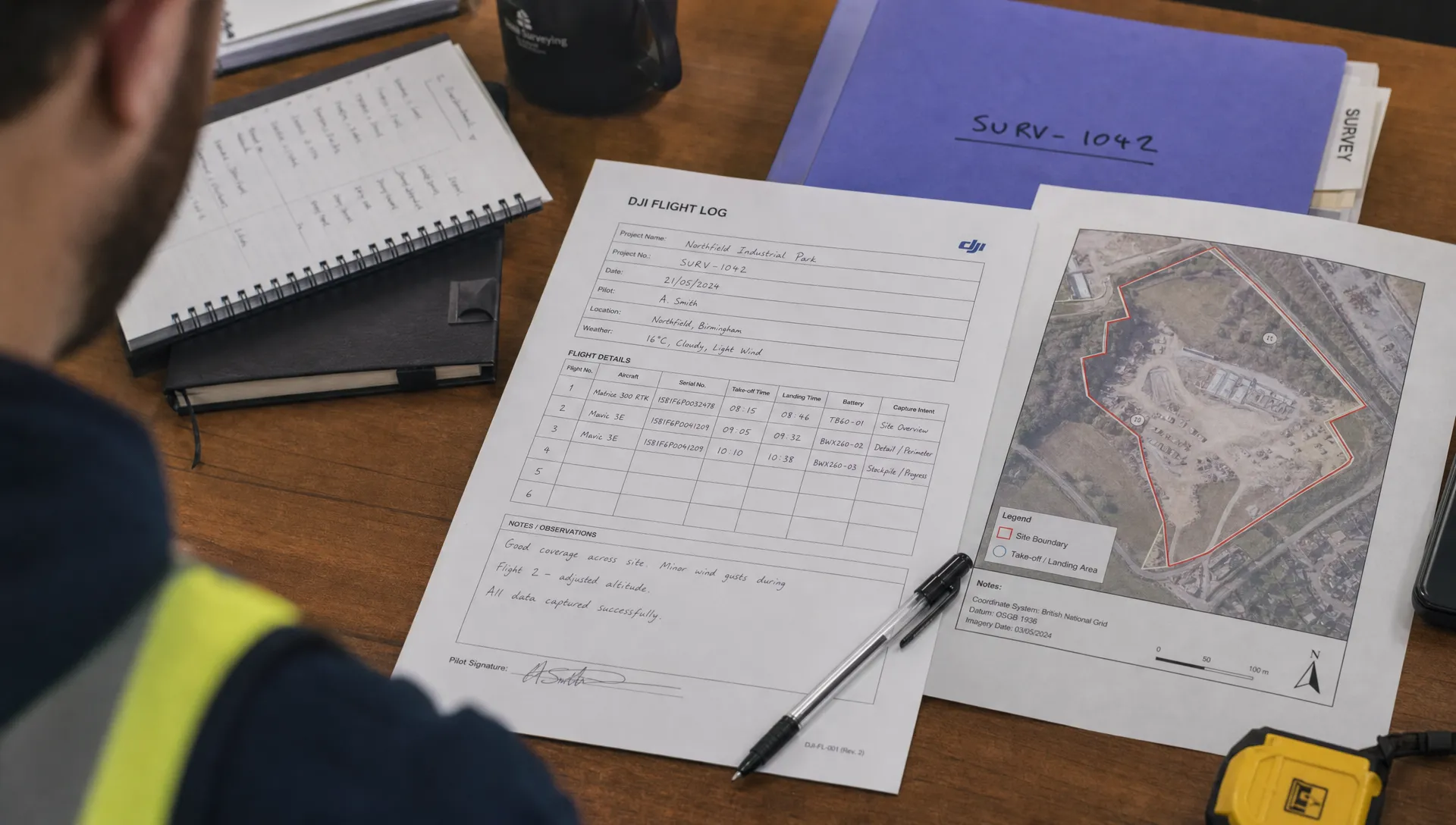
Step 5: Save the relationship and the reason for it
Once the evidence agrees, record the job reference alongside the source file reference. In a spreadsheet, this can be a job-reference column and a link to the retained file. In an operations system, use the supported association method and confirm that colleagues can retrieve the underlying record.
Keep a short matching note. For example: “Matched to SURV-1042: take-off falls within actual site attendance, track covers the survey boundary and aircraft identifier agrees with the deployment sheet.”
A useful matching register contains:
- The unique job reference and original source filename or record identifier.
- Take-off and landing times, with the time zone stated.
- Available aircraft identity and the source used to establish pilot identity.
- Matching evidence, decision status and any unresolved discrepancy.
- The reviewer’s name and review date.
This turns an unexplained file attachment into a traceable operational decision. Keep the client job reference in your business records even if the original flight file cannot store it internally.
Handle exceptions without distorting the flight history
Several flights belong to one job
Battery swaps, interrupted missions and supplementary capture can produce several records for one assignment. Link each qualifying DJI flight log to the same job, while retaining its individual timestamps and aircraft details.
Do not merge the source files merely to make the job look simpler. A job-level summary can sit above the individual records without replacing them.
One flight appears to support two jobs
Retain one source record and document its relationship to both jobs if that reflects what happened. Note which part of the activity supported each assignment and how any commercial allocation was decided.
Avoid counting the full flight duration twice in fleet totals. Client billing and aircraft utilisation are different calculations, so any allocation should remain separate from the underlying flight duration.
The evidence is incomplete or contradictory
Use a visible status such as “unmatched” or “needs review”. Ask for specific missing evidence, such as the pilot’s site notes or the actual attendance time, rather than asking someone to approve a guess.
If a filename suggests one job but the mapped track indicates another, investigate the discrepancy. A convenient filename should not override contradictory flight data.
The same record has been imported twice
Compare the aircraft identifier, start time, duration and source file before treating two entries as separate flights. Matching filenames alone are insufficient, and different filenames do not prove that flights are different.
Where appropriate, a file checksum can identify identical file copies. Keep any duplicate-handling decision visible so later reporting does not inflate flight counts.
Check the result before reporting or invoicing
Before closing the job, check that every associated flight has supporting evidence and that unexplained records remain visible for review. A missing flight can matter as much as an incorrectly attached one.
Check duration definitions too. A viewer’s flight duration, time recorded in a pilot’s notes and a client’s billable attendance period may measure different things. Label those measures rather than treating them as equivalent.
Finally, open the job as another team member would. Can they find the original DJI flight log, understand the timestamp conversion and see why it was assigned? If not, improve the record before relying on it for a report or client query.
For emergency-service work or sensitive infrastructure inspections, also check who can access the linked data. Location tracks and associated imagery can reveal more than a client-facing summary needs to show.
Frequently asked questions
Where is DJI flight data stored? Storage depends on the aircraft, controller and application. Records may be associated with the controlling app or device, while aircraft diagnostic data is a separate consideration. Check the documentation for the exact equipment and software version used rather than relying on a universal folder path.
Can I match a flight to a job using only its date? A date can narrow the search, but it is weak evidence when a crew visits several sites. Compare the actual flight window and mapped track, then check aircraft and crew information for conflicts.
Does a DJI flight log automatically identify the client? Do not assume it does. Client identity belongs to your business workflow unless your particular setup explicitly records that association. Maintain a stable job reference and document the connection yourself where necessary.
Is a flight log the same as D-Log or D-Log M video? No. A flight log records operational data, while D-Log and D-Log M are video recording profiles available on supported cameras. Video may provide supporting context, but it is not a replacement for a flight record.
Make the next job easier to reconcile
Start with one completed job and test this process from source file to final record. Resolve missing identifiers and inconsistent time zones before applying it across a larger archive.
If you are evaluating software for that workflow, review Dronedesk’s published features and confirm your specific file-support and job-association requirements. Keep the acceptance test simple: a colleague should be able to retrieve the flight, verify the match and understand any exceptions.
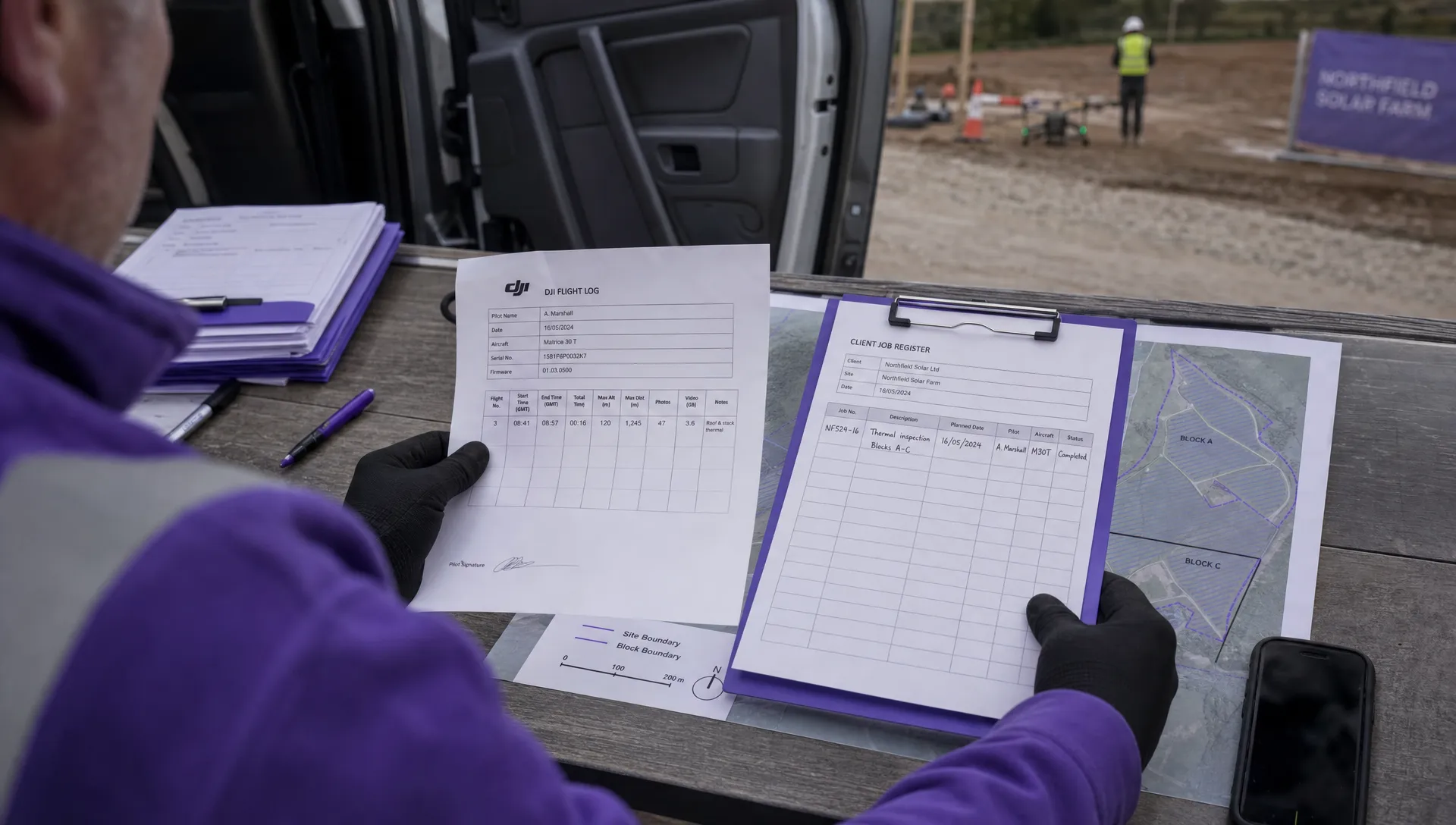 How to Match a DJI Flight Log to a Client Job →
 Drone Regulations Under 250 Grams for Mixed-Weight Fleets →
 Drone Safety Guidelines for Working Near Water →
 FAA Rules and Regulations for Drones on Shared Worksites →
 Drone Pilot 107 Refresher Training After a Career Break →
 How to Track Drone Regulations Worldwide as a Business →
 FAA Rules for Flying Drones at Night During Emergency Missions →
 How to Onboard an FAA 107 Pilot for Utility Inspections →
 FAA Drone Rules for Commercial Use on Construction Sites →
 When Should You Retire a Commercial Drone? →