
How to Preserve Original Data With a DJI Flight Log Converter
A DJI flight log converter creates a more accessible version of a flight record, but that export should never replace the source file. CSV spreadsheets, KML maps and GPX tracks can omit fields, change precision or present timestamps differently. Those differences matter when you are investigating an incident, checking a survey flight or preparing a client report.
The safest approach is to preserve the file exactly as acquired, convert a working copy and validate the output before relying on it. This guide explains how to do that without confusing a readable export with a complete original record.
Understand what conversion can lose
DJI flight records are not interchangeable. An app-generated flight record, an aircraft data file and a video subtitle file may describe the same flight but contain different information. A .txt extension does not necessarily mean the contents are ordinary readable text.
Conversion translates information into another structure. Whether that translation preserves every available field depends on the source format, the decoder and the output format.
| Output | Useful for | Preservation limitation |
|---|---|---|
| CSV | Spreadsheet analysis and comparisons | Selected columns may exclude warnings, events or other telemetry; numeric precision can change |
| KML | Viewing flight paths in mapping software | A route is not a complete telemetry record; height interpretation depends on altitude settings |
| GPX | Sharing tracks with compatible applications | Track exports often omit aircraft-specific information such as battery details and flight modes |
| Human-readable summaries and reports | Summaries may exclude individual samples and cannot replace machine-readable records |
Even a CSV with many columns is not automatically lossless. The converter may not recognise a field introduced by a later firmware release, or it may export only one value from a more detailed source structure.
Treat every file produced by a DJI flight log converter as a derivative unless you have verified otherwise. Keep the source alongside it so another tool or a later decoder version can revisit the same data.
Choose a DJI flight log converter by its actual input support
Check compatibility before uploading anything. Support for an aircraft model alone does not establish support for the record you have. The app, controller, firmware and log format can all affect whether a tool can decode it.
Use this checklist to establish what you are working with:
| Record origin | What to confirm before conversion |
|---|---|
| DJI Fly | App version, controller or mobile device, record type and converter support |
| DJI GO or GO 4 | Exact app and record version, rather than assuming all TXT files share a format |
| DJI Pilot or Pilot 2 | App version, aircraft/controller combination and supported export method |
| Controller or aircraft DAT file | Which device produced it and whether the tool supports that specific format and encryption |
| Video SRT file | Which telemetry fields are actually embedded in the subtitles and their sampling interval |
Do not change a filename extension to make an unsupported file appear compatible. Renaming a DAT file as TXT does not change its contents.
Encryption is another boundary. Some formats require decoding support or authorised access that a particular tool does not provide. A failed upload does not establish that the record is damaged.
If you are assessing a DJI flight log converter, test a non-sensitive record with the same app and device combination first. You can also check Dronedesk’s DJI flight log analysis tool when evaluating your analysis options, confirming current format support and data-handling terms before uploading operational records.
Preserve the source before opening or uploading it
Acquire the record without editing it
Use the app’s export function where available, or follow DJI’s current retrieval instructions for your particular app and controller. File locations and access methods vary, so avoid relying on an old folder path from an unrelated device.
Record whether you obtained a native record or an app-generated export. An export may already have transformed the data, so do not describe it as an untouched aircraft file unless that is what you acquired.
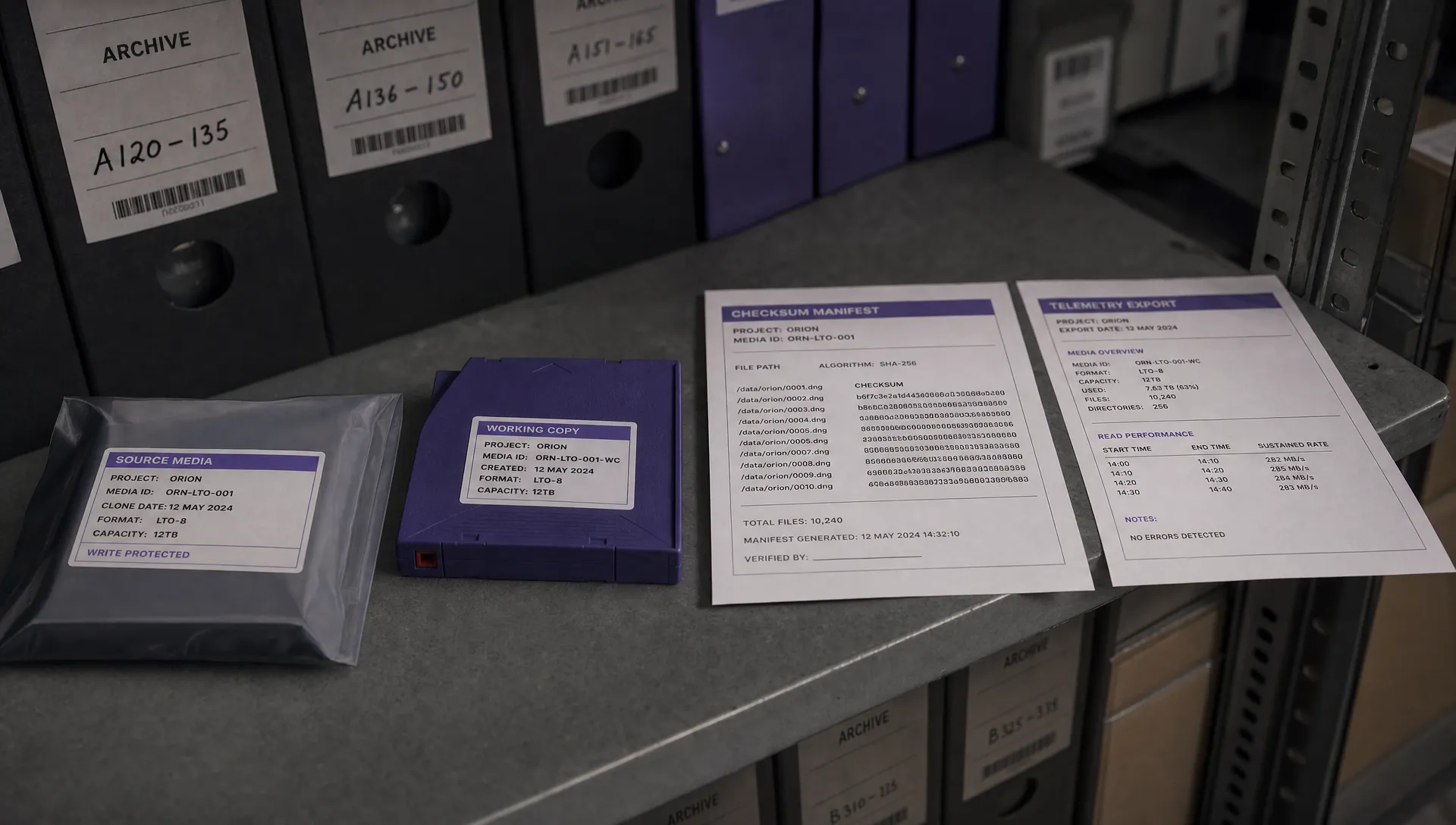
Before using a DJI flight log converter, store an unchanged source copy in a restricted archive and create a separate working copy. Retain the original filename within a uniquely named flight folder to avoid collisions with similarly named records.
Capture the acquisition context while it is available: the device, app version, aircraft identifier, collection time and person who collected the file. Filesystem timestamps can change during copying, so they should not be your only record of when the flight occurred.
Calculate and retain a checksum
A SHA-256 checksum helps you check whether the file’s contents have changed. Microsoft documents this functionality in PowerShell’s Get-FileHash command.
For example, on Windows:
Get-FileHash -LiteralPath '.\flight-record.txt' -Algorithm SHA256On macOS:
shasum -a 256 './flight-record.txt'Replace the example filename with your actual source file. Save the resulting value in your archive manifest and verify that the working copy produces the same value before conversion.
A matching checksum demonstrates that two files contain the same bytes. It does not prove that the flight record is authentic, complete or correctly attributed to a particular aircraft.
Convert a working copy and record the settings
Choose the output according to the task. CSV is generally useful for inspecting individual values, while KML or GPX may be more convenient for reviewing a route. A report intended for a client may need a separate, reduced-detail export.
Where a DJI flight log converter offers choices, record the selected fields, units, time-zone settings and sampling options. If those settings are not exposed, mark them as unknown rather than assuming defaults.
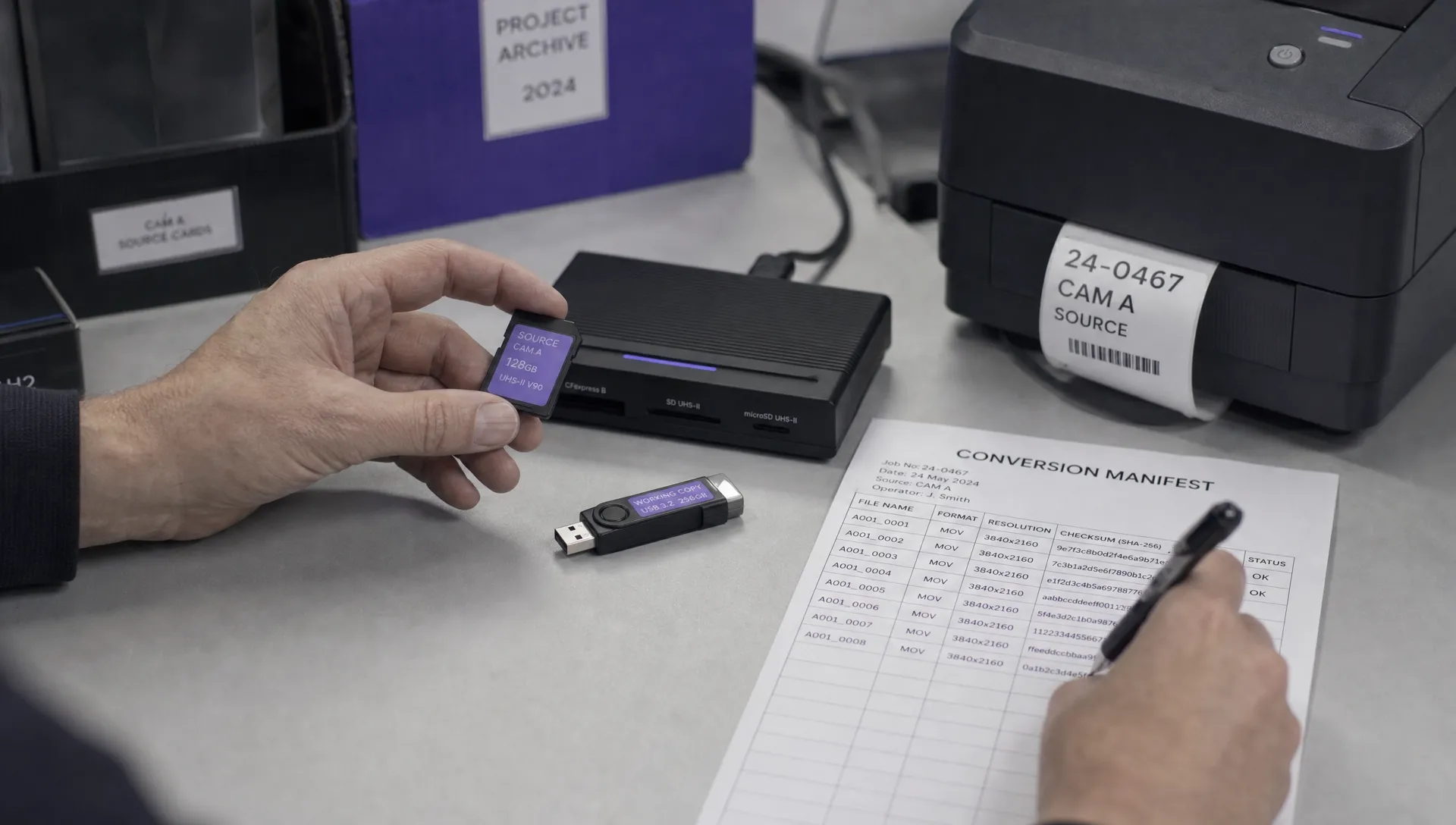
Keep a short conversion manifest containing:
- The source filename, byte size and SHA-256 checksum.
- The converter name, version or access date if no version is shown.
- The conversion date and settings used.
- The output filenames and their checksums.
- Any errors, warnings or fields the tool could not decode.
Do not save the result over your source. A naming convention such as flight123_source.txt, flight123_export_v1.csv and flight123_manifest.txt keeps the relationship clear. Preserve the actual original filename in the manifest if you use a different archive name.
Avoid repeatedly opening and saving CSV exports in a spreadsheet application. Automatic date detection, rounding or scientific notation can alter values. Keep the untouched converter output and use another copy for calculations.
Validate the export before using it in a report
Check timestamps and flight duration
Start with the first and last recorded samples. Establish whether timestamps are UTC, local time or elapsed time, and whether the export includes a date and time-zone offset.
A one-hour difference could reflect a daylight-saving interpretation rather than a flight timing error. Do not manually shift timestamps until you understand their basis.
Check what the reported duration measures. Motor-running time, airborne time and the interval between the first and last logged samples may differ legitimately.
A DJI flight log converter can produce a readable timeline without making those definitions clear. Record the definition you use in your analysis, particularly when comparing the export with a pilot logbook or another system.
Check position, height and units
Inspect the start location, a recognisable point along the route and the end location. Look for reversed latitude and longitude, impossible coordinates or implausible jumps.
Check whether speeds use metres per second, kilometres per hour or another unit. Confirm whether a height field describes height relative to take-off, altitude above a reference surface or another measurement.
For KML specifically, Google’s KML reference defines coordinate order and altitude modes. Do not assume that a take-off-relative height will display correctly when interpreted as height above terrain or absolute altitude.
For survey work, a flight-log track is useful operational evidence, but it is not a substitute for validating the positional accuracy of the survey deliverable.
Account for gaps and missing fields
Compare sample counts and intervals where the source and tools allow it. Different output structures can produce different row counts, so investigate discrepancies rather than demanding identical totals.
Check several representative points: take-off, a turn, a warning event if present and landing. Where available, compare battery readings, flight modes and event messages as well as coordinates.
A smooth map line can conceal a recording gap because the viewer joins the points either side. Similarly, an empty warning column may mean the field was not decoded, not that no warning occurred.
Document any discrepancy you cannot resolve. For incident analysis, retain the source and avoid presenting an incomplete export as a definitive explanation of what happened.
Check privacy before uploading or sharing
Flight records can expose customer sites, infrastructure locations, operating patterns and equipment identifiers. Some records may also contain home-point or controller-location information. Review what your particular file contains rather than assuming it records only the aircraft’s route.
Before uploading to an online service, establish whether processing occurs locally or on a remote server. Check its retention policy, deletion process, access controls and whether uploaded data is used for purposes beyond the requested analysis.
The right DJI flight log converter for a sensitive utility inspection may therefore differ from the tool you use for a non-sensitive test flight. A desktop interface does not itself prove offline processing, so verify network and storage behaviour against your organisation’s requirements.
If a service does not explain its handling clearly enough, do not upload the sensitive file. Use an approved alternative or seek clarification first.
For external sharing, create a separate derivative containing only the fields and route detail the recipient needs. Inspect hidden spreadsheet columns, additional worksheets and document metadata as well as the visible report. Preserve the restricted source unchanged and document what you removed from the shared version.
Keep the archive reproducible
A useful archive lets another person establish which source produced a report and repeat the conversion later. Store the source, manifest, untouched outputs and analysis copies as distinct items, with access appropriate to their sensitivity.
Retain a second protected copy according to your organisation’s backup arrangements. Check that it can be restored and that its source-file checksum matches the manifest. A folder that synchronises automatically is not necessarily protection against accidental deletion or replacement.
When you update your DJI flight log converter, test it against a known record before using it across a batch. Compare timestamps, field names, units and representative values with the previous output. A decoder update can change the interpretation without changing the source file.
For teams managing several aircraft, include this process in the wider record-keeping approach described in Dronedesk’s drone fleet management guide. Assign responsibility for acquisition and validation, then define who may release an export externally. That prevents converted files becoming disconnected from the flight and job they describe.
Frequently asked questions
Can converting a DJI log change the original file? That depends on the tool and workflow. Converting a separate working copy protects your archived source from accidental edits. Compare the archived file’s checksum with its recorded value if you need to check that its contents remain unchanged.
Does CSV preserve every field in a DJI flight record? Not necessarily. A DJI flight log converter may export only recognised or selected fields, flatten structures or reduce precision. Keep the source even when the CSV appears complete, and document any known omissions.
Can I convert an encrypted DAT file with any converter? No. Support depends on the particular DAT format, its origin and the tool’s decoding capabilities. Confirm support before uploading and do not treat a conversion failure as proof of corruption.
Can an SRT-to-GPX conversion replace the flight log? No. It can create a track using telemetry present in the subtitle file, but it cannot recreate information that the SRT never contained. Keep it separate from app or aircraft flight records and identify its source in your report.
Make source preservation part of the workflow
Archive first, convert second and validate before sharing. That sequence keeps readable exports useful without making them your only evidence.
When reviewing the wider software you use around flight records, compare your requirements with Dronedesk’s current features. Keep source-file preservation as an explicit requirement, regardless of which conversion or operations tools you choose.
 How to Preserve Original Data With a DJI Flight Log Converter →
 Beyond Visual Line of Sight Drone Operations and Observer Roles →
 How to Troubleshoot a DJI Log Export That Will Not Open →
 Drone Pilot Regulations for Visiting Overseas Contractors →
 Drone Laws Near Airports for Repeat Inspection Contracts →
 FAA Restrictions on Drones During Stadium Events Explained →
 How to Update Drone Flight Checklists After a Near Miss →
 FAA Drone Regulations for Commercial Use in Paid Training →
 What a Drone Line of Sight Waiver Means for Project Scope →
 Drone Regulations for Commercial Use With Mixed Aircraft Fleets →