
How to Troubleshoot a DJI Log Export That Will Not Open
A DJI log export that will not open is not necessarily damaged. You may have a binary flight record rather than a text document, a diagnostic package intended for DJI support or a file that your chosen viewer does not support. An incomplete transfer can produce similar symptoms.
Start by preserving the original file. Do not rename its extension, clear the DJI app’s storage or reinstall the app while you are still trying to recover records. The checks below help you identify the file, repeat the transfer safely and choose the right way to inspect it.
Identify the file type in your DJI log export
DJI flight records and diagnostic logs serve different purposes. Their extensions give you a starting point, but an extension alone does not prove compatibility with a viewer.
| File or package | What it may contain | Appropriate next step |
|---|---|---|
DJIFlightRecord… .txt |
An app-generated flight record, often containing encoded or binary data despite the extension | Use a compatible DJI flight-record reader, not a word processor |
.DAT |
Aircraft, controller or mobile-device diagnostic data, depending on its source | Establish where it came from and check whether DJI support or a specialist decoder is required |
.zip |
An archive containing logs or a support package | Test whether the archive opens, then identify the files inside |
.csv |
A table exported by a viewer or another application | Open it in a spreadsheet and check import settings |
.kml |
Geographic information produced by an export or conversion tool | Use an application that supports KML |
A TXT flight record displaying unreadable characters in Notepad does not, by itself, indicate corruption. Likewise, a DAT file refusing to open in a TXT flight-record reader may simply be the wrong input.
Record how the DJI log export was created before attempting a conversion. This guide concerns flight and diagnostic records, not D-Log camera footage.
Rule out an incomplete transfer
Check the file itself before changing apps or installing another decoder. Work on a copy and leave the source record untouched.
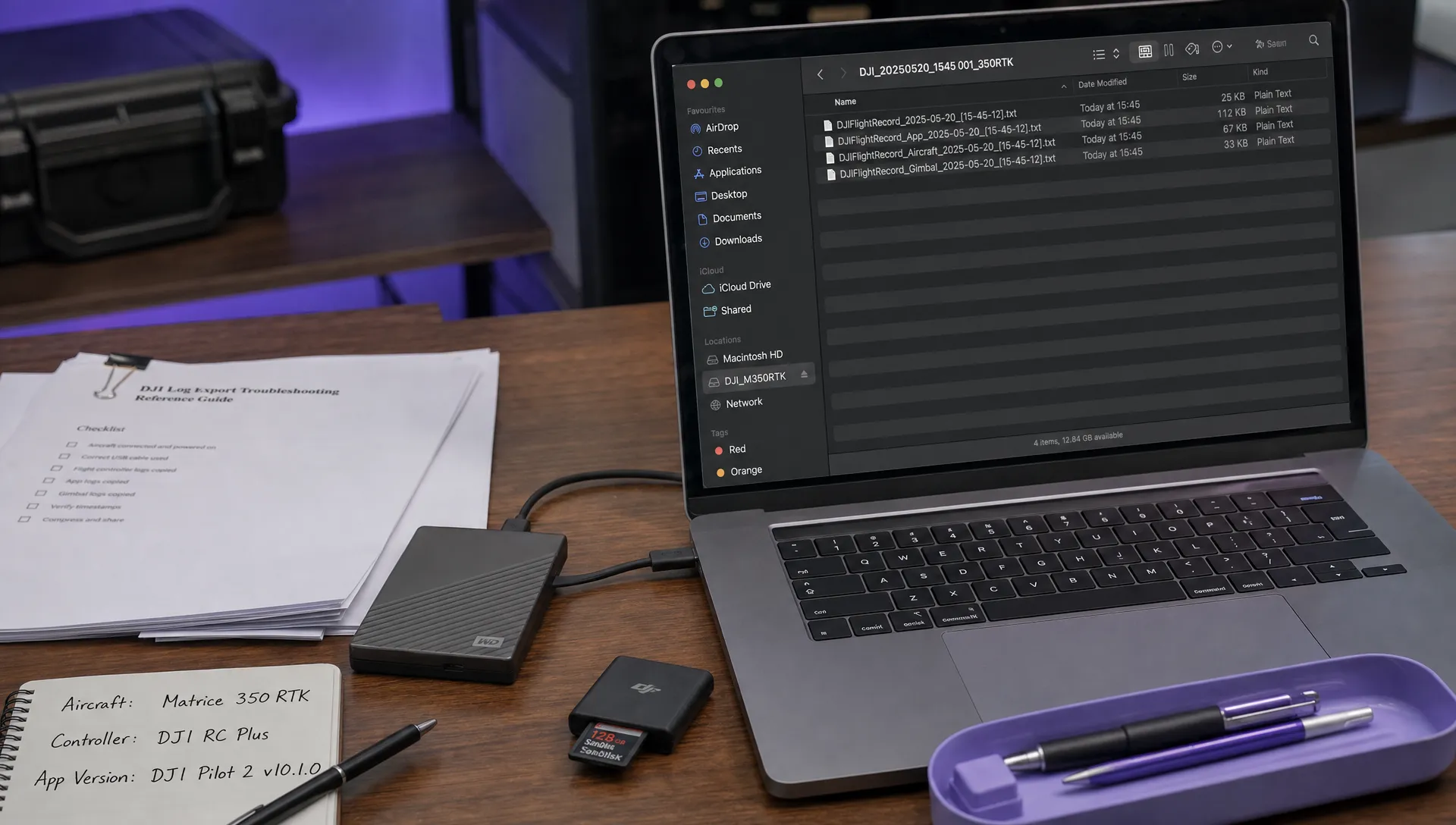
- Check the actual extension: Enable filename extensions in your computer’s file browser. A file called
record.txt.zipis still a ZIP archive. - Check the size: A zero-byte file contains no usable log data. An unexpectedly small file needs comparison with the source, although size alone cannot confirm corruption.
- Finish any cloud download: A cloud-storage placeholder is not necessarily a complete local copy. Make the file available offline before opening it.
- Compare source and destination: When copying an individual file unchanged, its byte count should match at both ends.
- Repeat the copy directly: Use a known data-capable USB cable or another supported transfer method rather than forwarding the file through several messaging apps.
If a ZIP archive reports an unexpected end or extraction error, try copying or exporting it again. Do not assume that repeatedly downloading the same incomplete archive will repair it.
For higher-assurance incident handling, compare SHA-256 checksums where you can access both copies. Matching hashes confirm that those copies are identical, not that the original record is complete or readable.
Recover the record from the correct device
The next step for a DJI log export depends on where the flight-control app ran. A phone used with a screenless controller, an integrated-screen controller and the aircraft itself can hold different records of the same flight.
DJI Fly or DJI GO 4 on Android
Use the Android device that actually ran DJI Fly or DJI GO 4 during the flight. Connect it to your computer, unlock it and select a USB file-transfer mode if prompted. A charging-only connection will not expose its files.
Look for the app’s flight-record folder. FlightRecord and filenames beginning with DJIFlightRecord are useful identifiers. A DJI Fly path you may encounter is Android/data/dji.go.v5/files/FlightRecord, but folder locations and access vary with the app, Android version and device.
Modern Android storage restrictions can prevent a file manager or connected computer from browsing app-specific folders. An inaccessible or apparently empty folder does not prove that the records are missing.
Use an app-provided export function if your version offers one, or follow the device-specific DJI instructions. Avoid installing unknown file-access utilities or changing security settings solely to follow an old tutorial.
If playback works inside the DJI app but the copied DJI log export fails elsewhere, that is useful evidence to investigate the transfer or reader compatibility. It does not guarantee that the exported file is complete.
DJI Fly or DJI GO 4 on iPhone and iPad
Connect the device to a trusted computer and accept the device’s trust prompt if required. On a Mac, check the device in Finder. On supported Windows systems, use Apple Devices, or iTunes where applicable.
If the DJI app exposes documents through file sharing, open its documents area and copy the relevant flight-record folder or files. Keep the folder structure when exporting a complete set.
You can also check the Files app under local device storage, but only if the DJI app makes its records available there. An app’s records are not automatically accessible through every iOS file-transfer method.
If the app is absent from file sharing, confirm the supported method for that app and version rather than assuming the logs have been deleted. Do not remove the app as a troubleshooting step before securing the records.
Integrated-screen controllers and DJI Pilot 2
For controllers with a built-in screen, begin on the controller rather than a separate phone. Confirm which app was used, such as DJI Fly or DJI Pilot 2, and identify the corresponding flight records.
Use the controller’s supported export or file-transfer method. Do not assume that inserting a microSD card automatically copies app records onto it. Media storage and flight-record storage can be separate.
Keep mission-planning files distinct from flight records. A saved route or mission package is not a substitute for recorded telemetry, even when both relate to the same operation.
When a DJI log export from an integrated-screen controller fails, note the exact controller model. Aircraft model alone is not enough to identify the export procedure. Also retain any separate records requested by DJI support.
Use DJI Assistant 2 for the right kind of data
DJI Assistant 2 is relevant when diagnostic data is needed from a supported aircraft or controller. It is not a universal reader for app-generated flight records.
Start with the product’s entry in the official DJI Download Centre. Different product families use different Assistant 2 editions, and the wrong edition may not recognise the connected hardware.
Follow the model’s connection instructions, use a data-capable cable and maintain adequate battery charge. If the software offers log export or upload, select the relevant session and let the process finish before disconnecting.
Keep any generated package intact. Some diagnostic records are encrypted or intended for DJI’s support systems, so failure in a public viewer is not proof of a bad export. Renaming a DAT file to TXT does not convert its contents.
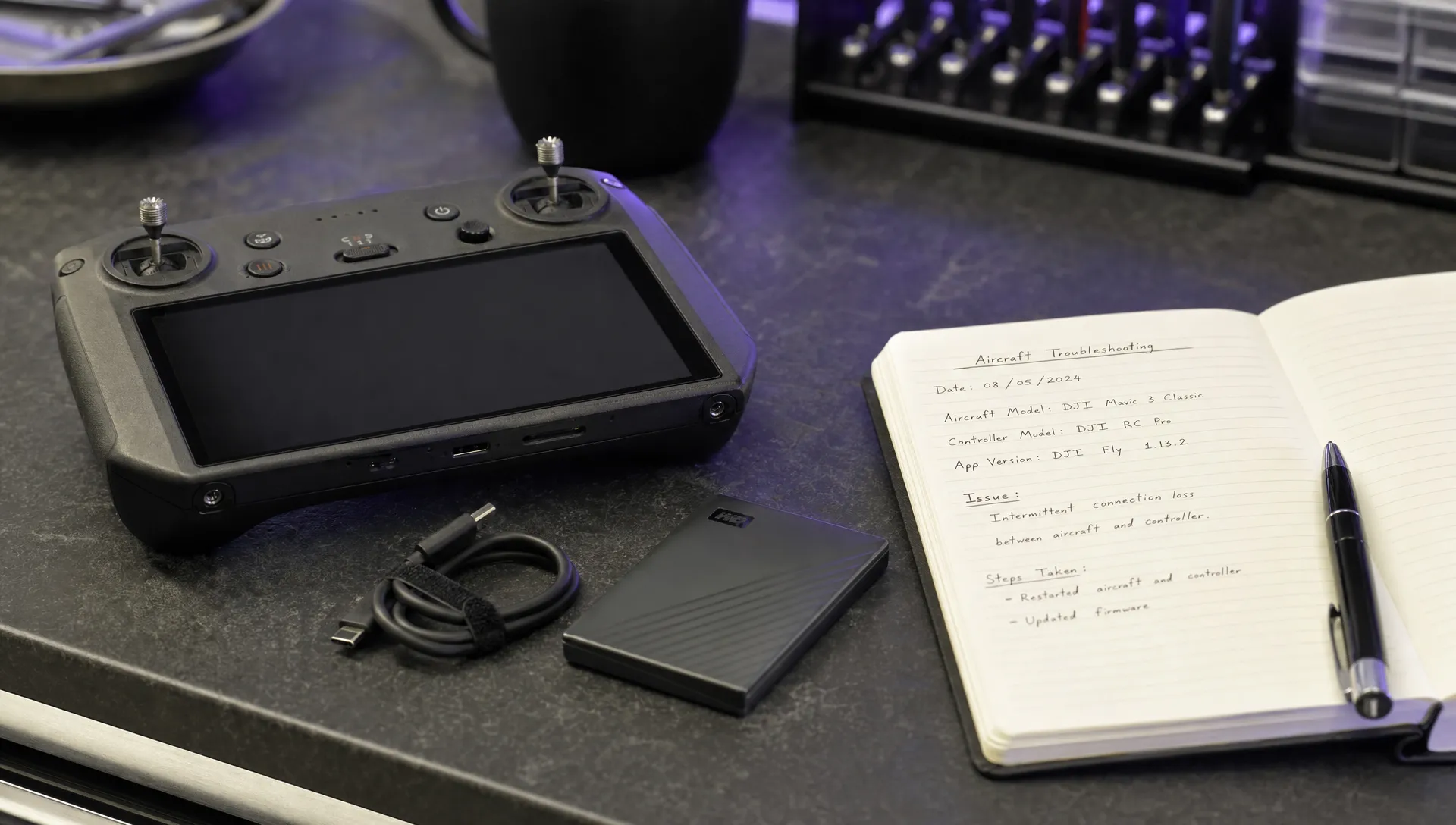
Check the viewer’s format support
Once you have a complete local copy, check that the reader accepts that specific record type. Support can depend on the app version that created the file, not just the aircraft model.
A viewer that handles older DJI Fly records may not understand a newer format. Equally, a reader designed for mobile-app TXT records may not accept aircraft DAT data or an entire support archive.
For flight-record inspection, you can try the Dronedesk DJI flight log analysis tool. Check the tool’s current compatibility and data-handling information before uploading operational records; do not assume that any viewer accepts every DJI format.
When a DJI log export produces an “unsupported format” or “encrypted record” message, retain the exact wording. Those errors suggest a different next step from “file not found” or “archive damaged”. Re-exporting cannot make an unsupported format compatible.
If the same reader previously opened comparable records, test a known-good file from the same app version where possible. This helps distinguish a reader problem from a problem affecting one flight.
Match the error to the next test
Use the symptom to narrow the investigation rather than repeatedly trying unrelated applications.
| Symptom | Likely explanation to test | Next action |
|---|---|---|
| TXT opens as unreadable characters | Encoded or binary flight-record content | Use a compatible flight-record reader |
| File is zero bytes | Empty export or failed transfer | Check the source and repeat the export |
| ZIP will not extract | Incomplete transfer or damaged archive | Recopy it and compare its size with the source |
| Reader reports an unsupported version | Format or parser incompatibility | Check reader support and retain the original |
| DAT is rejected by a TXT reader | Wrong reader for that log type | Identify the DAT’s source and intended support workflow |
| Device charges but no files appear | USB mode, cable, permissions or storage restrictions | Check the cable, unlock the device and confirm the supported transfer method |
| CSV opens in one column | Delimiter or regional import settings | Import it using the correct separator |
| Flight opens but the route looks incomplete | Partial data, limited position information or a decoding issue | Compare with app playback and retain related records |
A DJI log export that opens but shows questionable data still needs checking. Compare the flight date, duration and aircraft identity with the original app record. Check the time zone before concluding that you have selected the wrong flight.
Do not treat a successful upload as proof that every field has been decoded correctly. Missing values and partial timelines should be recorded as limitations.
Escalate with useful evidence and protect sensitive data
If the record still will not open, prepare a concise support report. Include the aircraft and controller models, app name and version, device operating system, export method, file extension, file size and exact error message.
Add whether the flight plays back in the original app, whether other records open in the same viewer and whether a second transfer produced an identical file. These details help support distinguish access, transfer and compatibility problems.
Flight logs can contain coordinates, timestamps and device identifiers. For survey teams, utilities and emergency services, those details may reveal client sites or operational activity. Use an approved sharing channel rather than attaching raw records to a public forum.
Retain an untouched original and create a separate working copy for analysis. If a DJI log export relates to an incident, record who copied it, when it was collected and any processing applied. Redact screenshots or derived reports where appropriate, but do not edit the source file and then present it as an original.
When requesting help publicly, begin with the error message and equipment details. Share the raw log only after considering what it contains and who will receive it.
Frequently asked questions
Why will a DJI TXT file not open as readable text? The TXT extension does not guarantee plain text. DJI flight records can contain encoded or binary information that requires a compatible reader. Unreadable characters alone do not establish corruption.
Can I convert a DAT file by changing its extension? No. Changing a filename does not change its internal format. DAT records vary by source and may require specialist processing or DJI support.
Will syncing flight records fix an export that will not open? Not necessarily. Sync availability varies, and a synced record may still be incompatible with your reader. Preserve local records before changing settings or reinstalling an app.
Should I reinstall the DJI app if the logs are missing? Secure any accessible records first. Removing an app or clearing its storage can remove locally stored data. Confirm the supported recovery or export method before taking either action.
Keep the original and document the fix
Once the record opens, retain the original alongside any converted CSV, map or analysis report. Note which software and version successfully read it so the next operator can repeat the process.
If you are reviewing the wider record-keeping process, compare your requirements with Dronedesk’s published features. Keep the distinction between source logs and derived reports explicit in whichever workflow your team adopts.
 How to Troubleshoot a DJI Log Export That Will Not Open →
 Drone Laws Near Airports for Repeat Inspection Contracts →
 FAA Restrictions on Drones During Stadium Events Explained →
 How to Update Drone Flight Checklists After a Near Miss →
 FAA Drone Regulations for Commercial Use in Paid Training →
 What a Drone Line of Sight Waiver Means for Project Scope →
 Drone Regulations for Commercial Use With Mixed Aircraft Fleets →
 FAA 107 Test Study Plans for Shift Workers →
 How to Match a DJI Flight Log to a Client Job →
 Drone Regulations Under 250 Grams for Mixed-Weight Fleets →